Help test KennelTree: join the beta
KennelTree is nearly ready. Try it first, with your own dogs, on your Mac, iPhone or iPad, and tell us what is wrong or missing.
KennelTree is nearly ready, and before it goes into the App Store we want it in the hands of people who keep dogs the way we do: breeders and exhibitors with pedigrees, titles, health results and litters to look after. The beta is free. Use it with your own dogs and tell us what is wrong or missing.
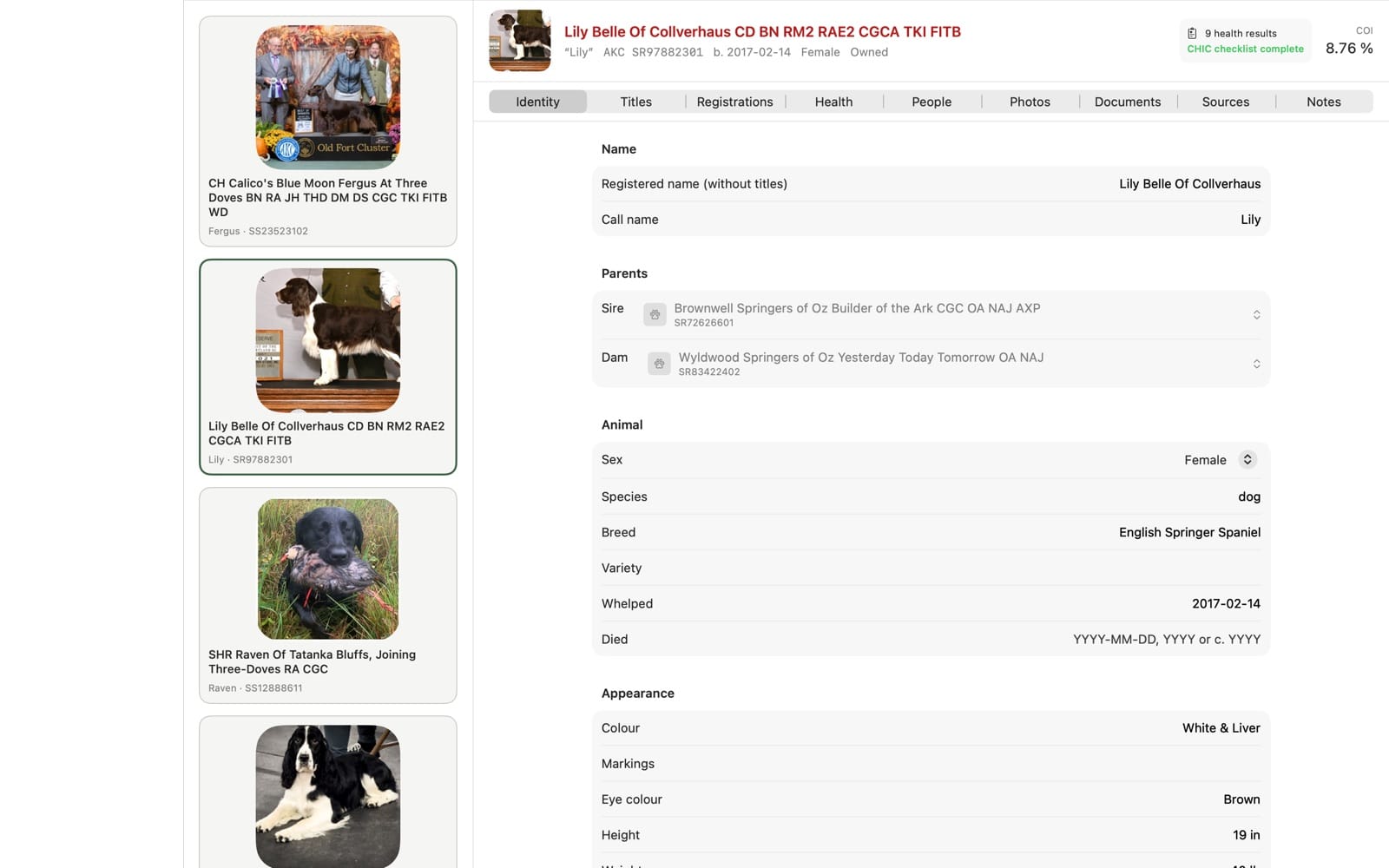
What you need
- A Mac, iPhone or iPad running macOS 26, iOS 26 or iPadOS 26.
- An Apple Account (the one you use for the App Store).
- Apple's free TestFlight app, which installs beta apps and sends your feedback to us.
How to join
1. Sign up below. Give your name and the e-mail address where you would like the invitation. We send invitations in small groups, so it may take a day or two.
Or join straight away: open testflight.apple.com/join/Z1nZgcra on your Mac, iPhone or iPad, with TestFlight installed, and choose Accept.
2. Install TestFlight. On each device you want to use, install TestFlight from the App Store. It is made by Apple and is free.
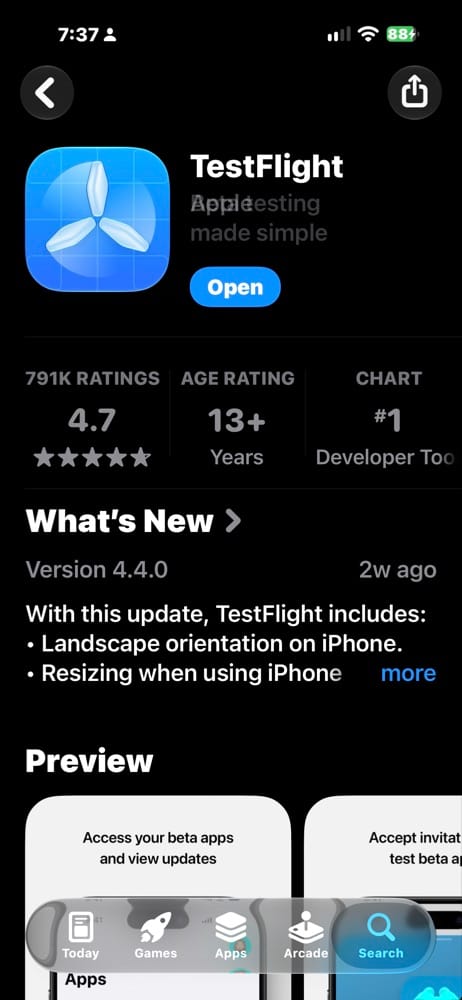
3. Open the invitation. The e-mail comes from TestFlight on our behalf. Open it on your Mac, iPhone or iPad and choose View in TestFlight. TestFlight opens and shows KennelTree; choose Accept, then Install. The invitation works with any Apple Account, so it need not match the address you signed up with.
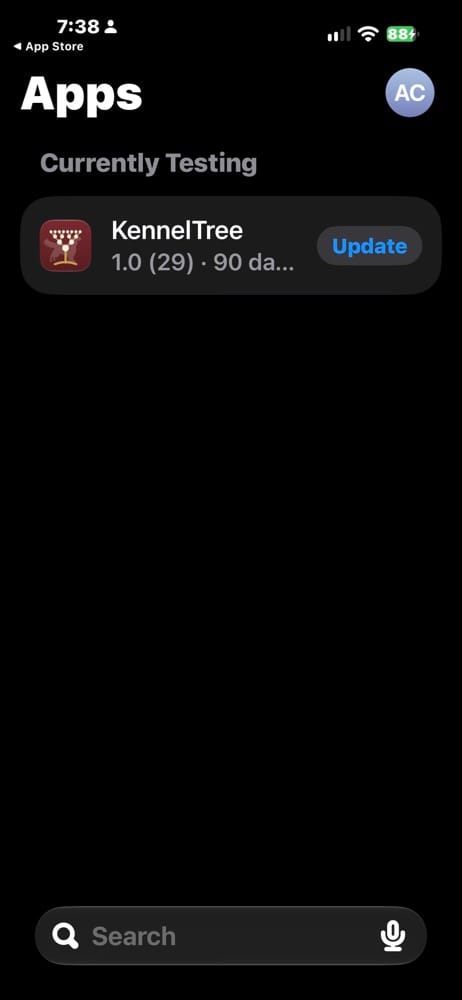
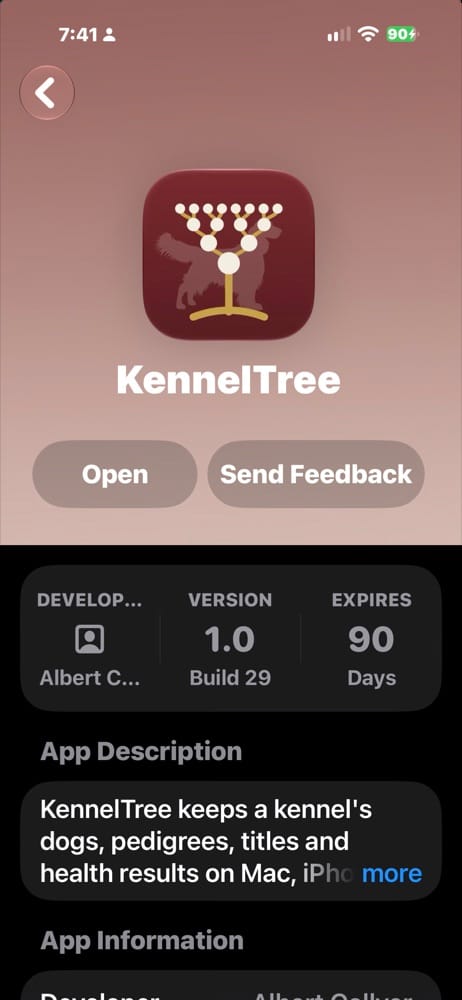
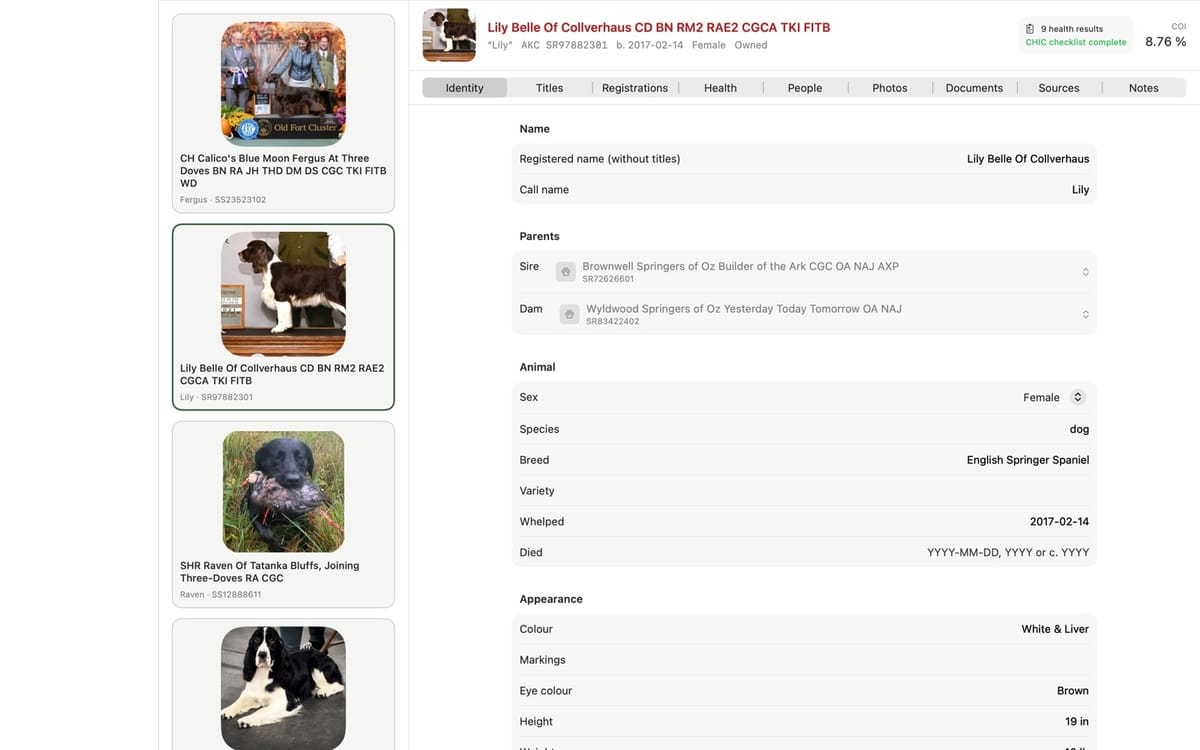
4. Use it with your own dogs. Start with an AKC document: a research pedigree, a registration certificate, or your dog's Titles & Points page saved as a PDF from My AKC. KennelTree shows what it found and proposes the changes; nothing is saved until you accept them.
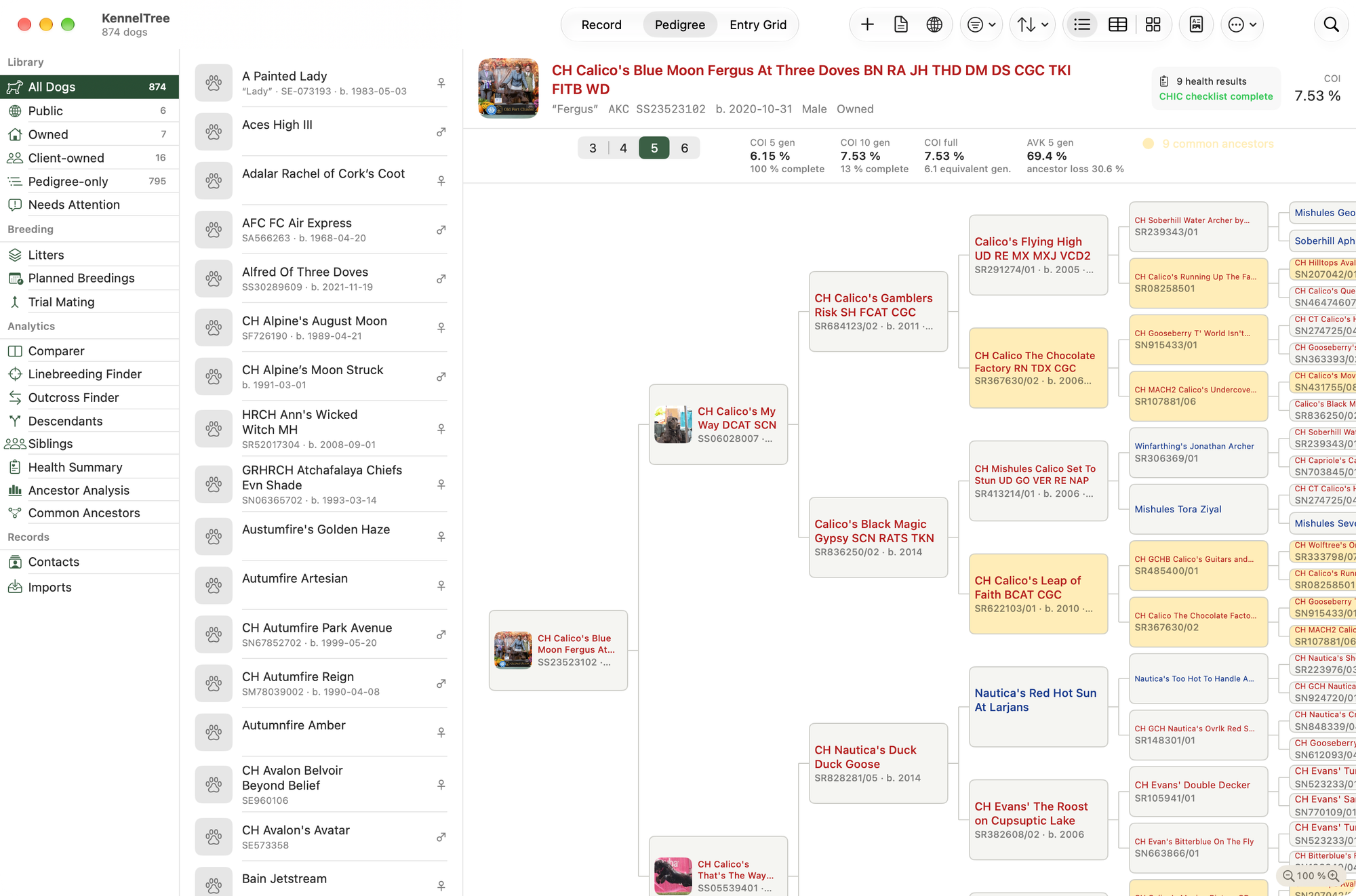
What to try
- Importing AKC pedigrees, registration certificates and Titles & Points pages. Are the right dogs matched?
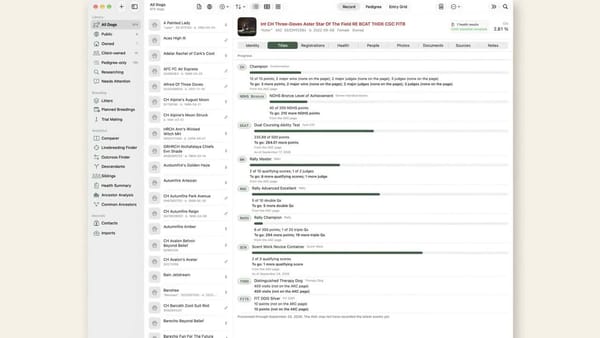
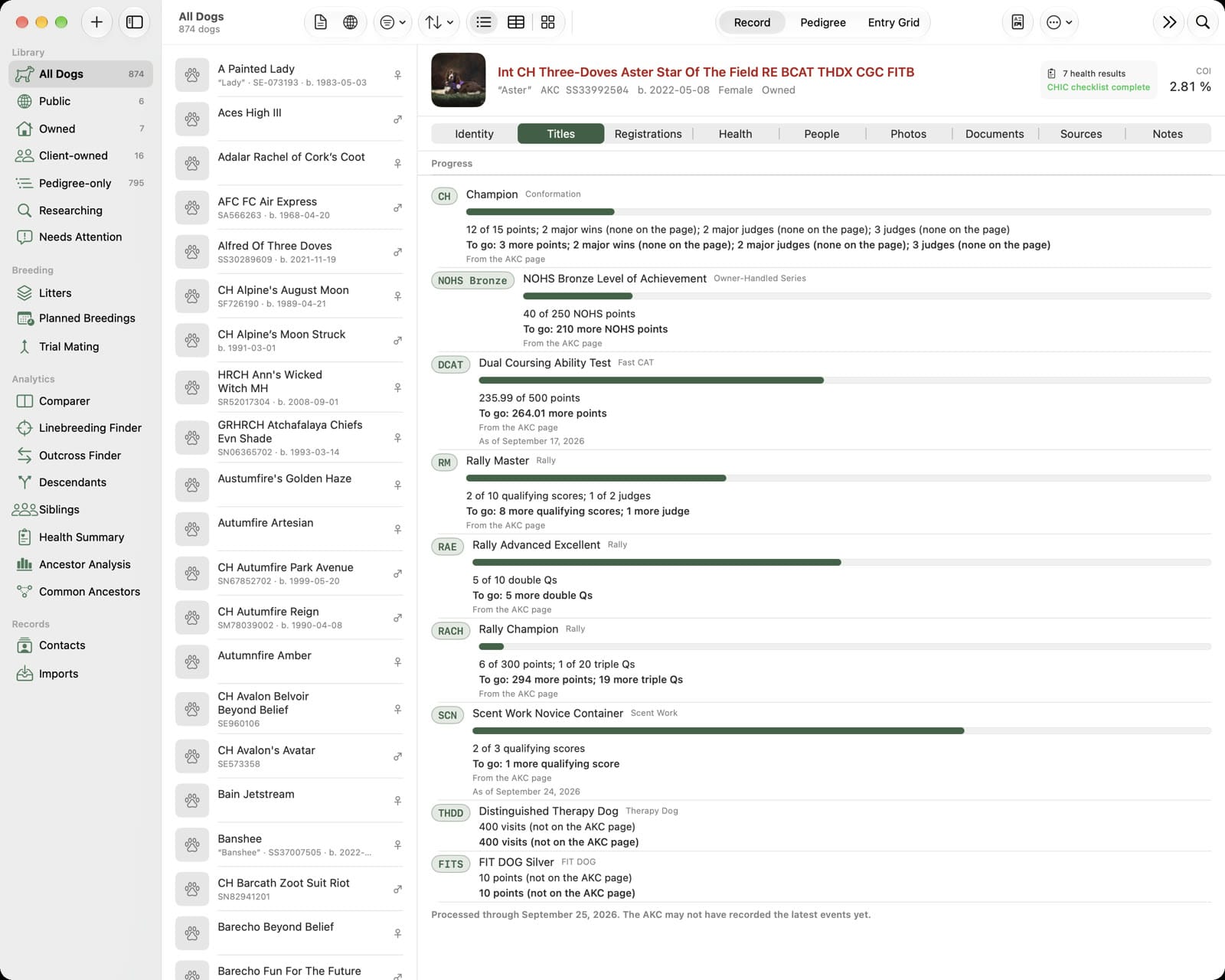
- Title progress. The Titles tab shows how far each dog is from its next titles. Does a figure or a rule look wrong?
- Names in capitals. Needs Attention offers the spelling the AKC prints for names stored in capitals.
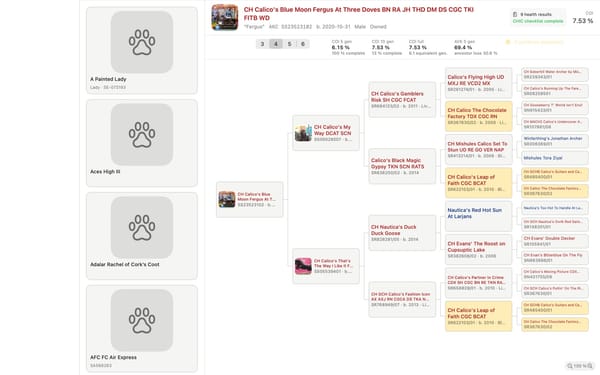
- Reports. Print a pedigree and a dog's record to PDF.
- Sync and sharing between your own devices, and with a second Apple Account in your family.
- Coming from iPed? In iPed Everywhere, choose Import/Export › Download Database, then in KennelTree choose Imports › Import from iPed (.ptped)… and pick that file. It is read on your own device; nothing is uploaded. Back up first (Settings › Backups › Back up now), since this import goes straight into your Library. Files from older iPed versions and The Breeder's Standard are especially welcome: tell us if anything is missing.
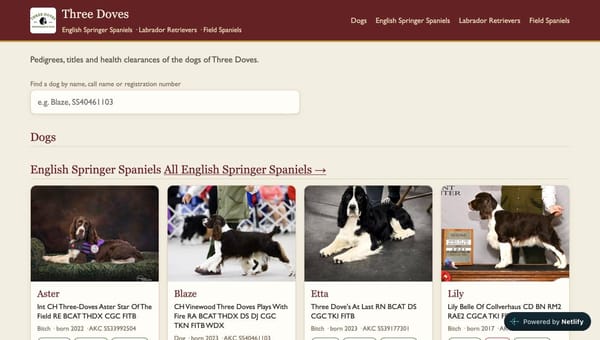
- Your kennel's website. In Publishing, choose Netlify (free hosting), sign in, create a site and choose Publish now. Show your dogs with Show Listed Dogs on Published Site. How it works.
Telling us what you find
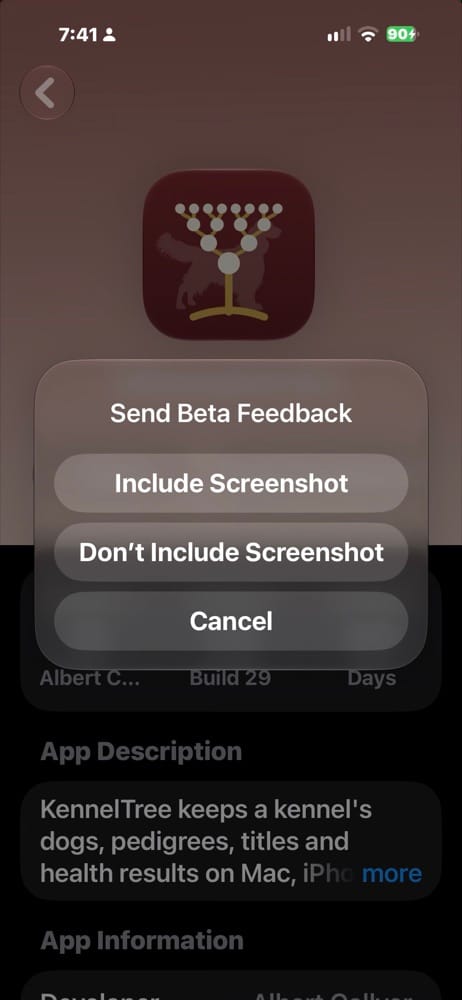
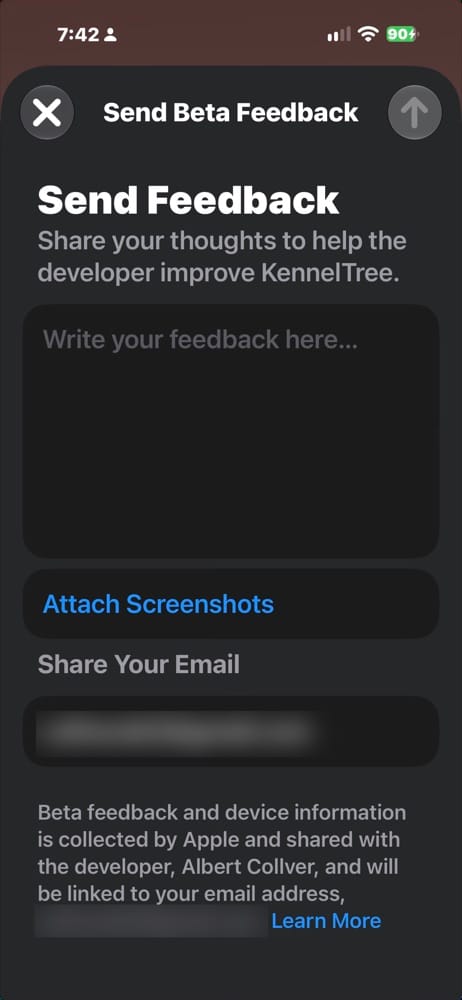
When something looks wrong, take a screenshot. Then open TestFlight, choose KennelTree and tap Send Feedback, choose Include Screenshot, and add a sentence about what you expected. This works the same on a Mac, an iPhone and an iPad. On an iPhone or iPad you can also tap the screenshot's thumbnail and choose Share Beta Feedback. You can also write to support@kenneltree.com.
What we see
Purchases cost nothing in the beta. Some features may still look as if they need a purchase or a subscription. Go ahead and buy as if you were in the App Store: TestFlight shows that the purchase is part of a beta and that you will not be charged. It helps us test the purchase screens too.
Your dogs, pedigrees and documents stay in your own iCloud; nothing is sent to us. TestFlight shares with us only what Apple's tester agreement describes: the name and e-mail address on your invitation, the device and system version, crash reports, and the feedback you choose to send.
Beta builds expire after 90 days. When KennelTree reaches the App Store, install it over the beta: your records stay, on your devices and in iCloud. Features that were unlocked in the beta then need the trial or a purchase, as they do for everyone.